
Our children, our responsibility
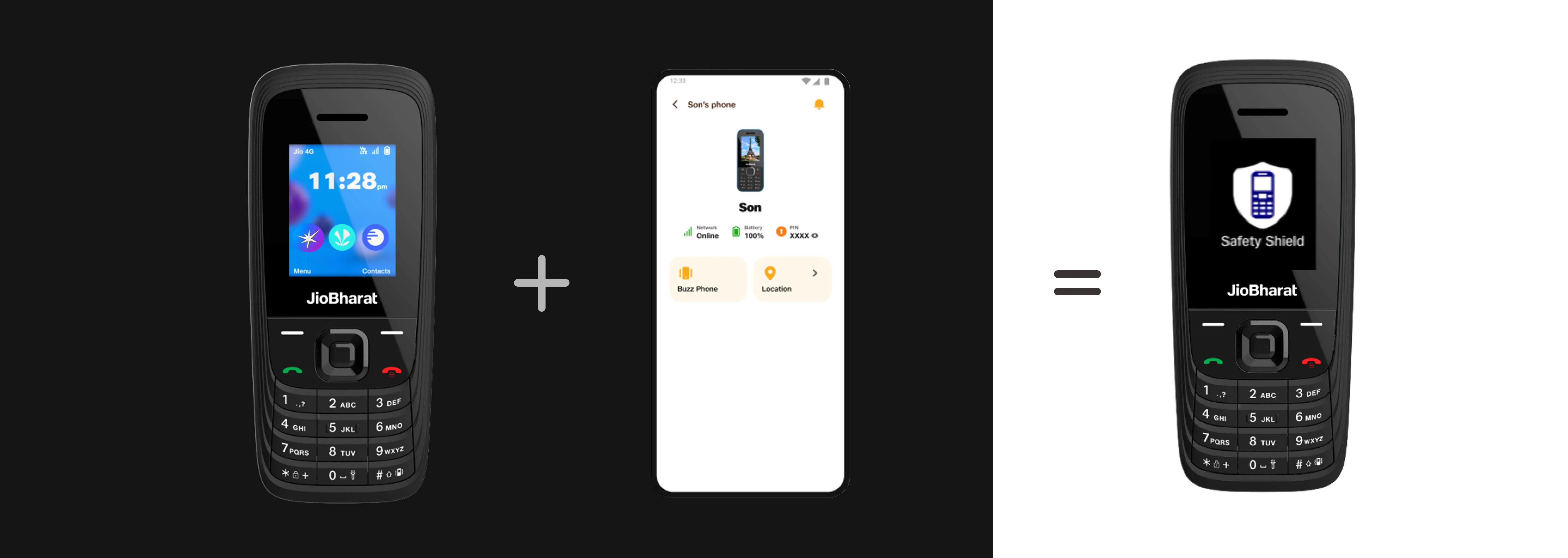
Children across India are going online younger, faster, and more unsupervised than ever before. At Jio, we believe that building a safe digital world for children is not optional; it is part of what it means to responsibly operate in this space. Safety Shield–enabled Jio phones are here to provide digital safety for our children.
Works on JioBharat & JioPhone, starting ₹799.
Children don’t see the risk.
Parents must.
Parents must.
Restricted Numbers
Distraction Free
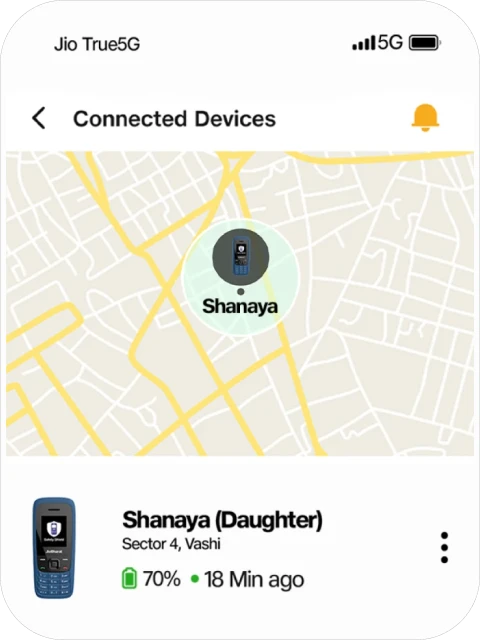
Location Monitoring
Explore our range of Safety Shield-enabled products
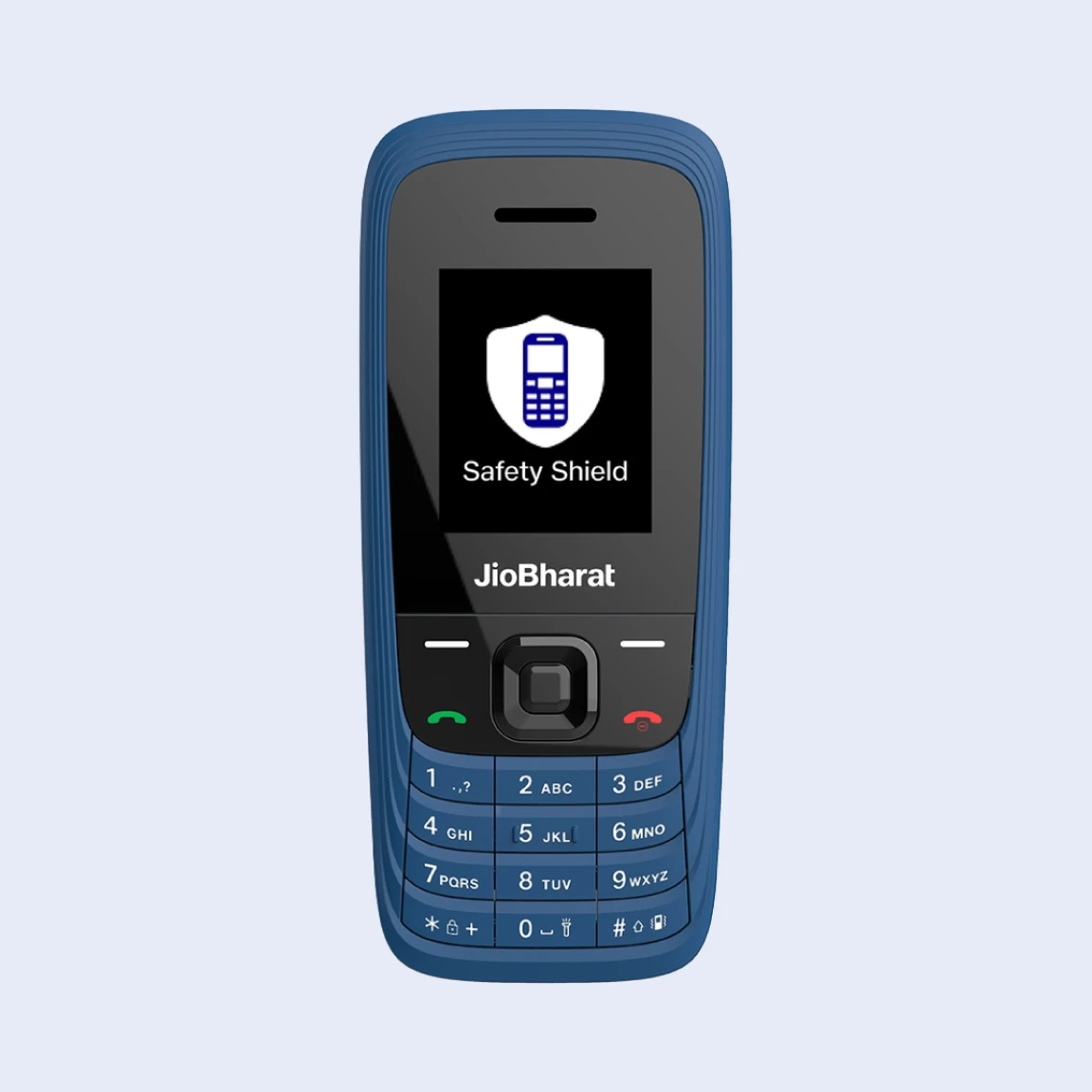
JioBharat V4
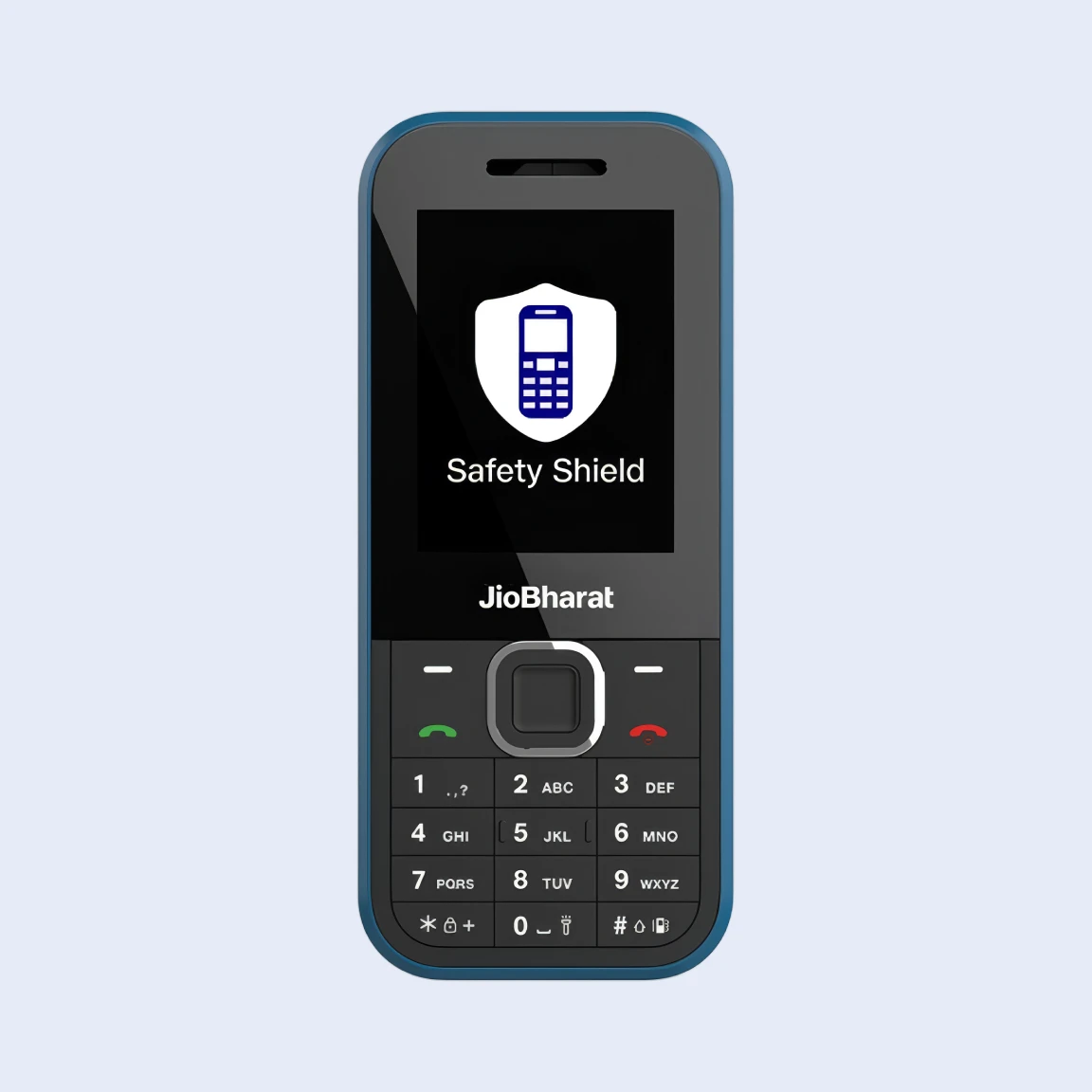
JioBharat B2
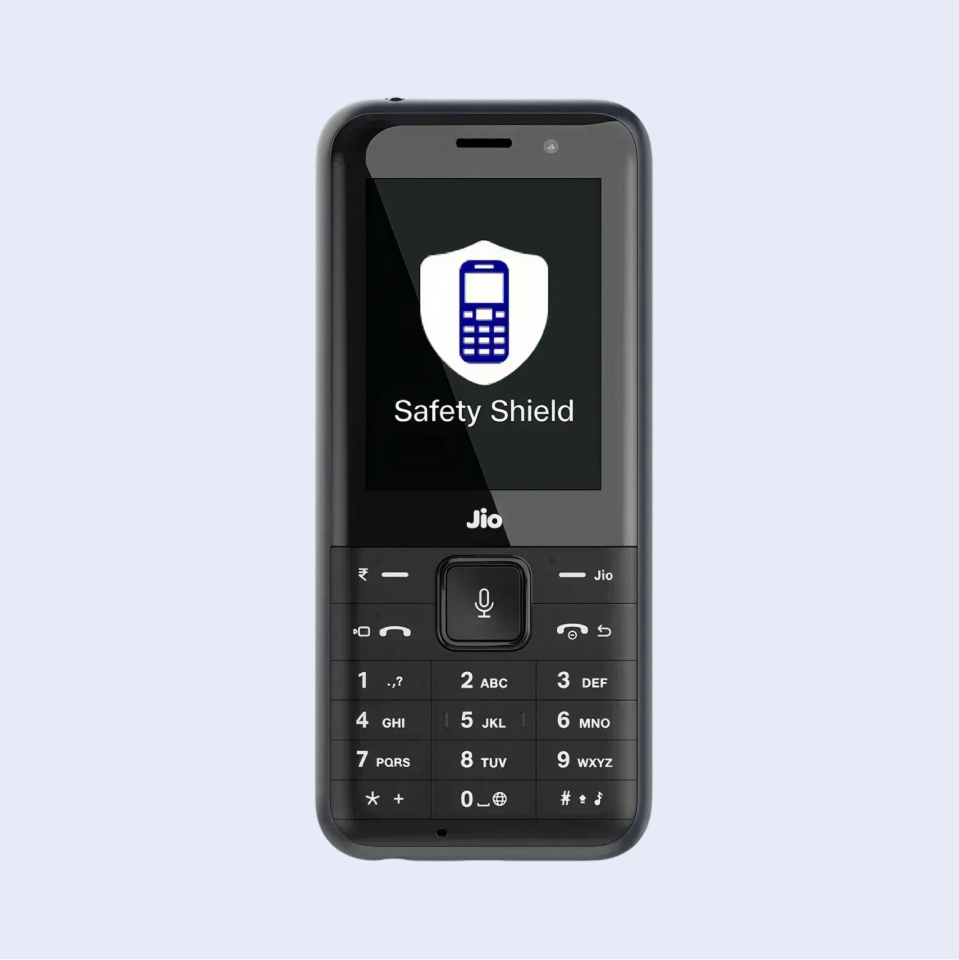
JioPhone Prima 2
Got your phone?
Now let’s get started
Now let’s get started
Quick setup guide

FAQ
Safety Shield is a parental control feature available on Jio feature phones (JioBharat and JioPhone Prima 2) that helps parents keep their children safe in the digital world. It is managed remotely through the JioThings app on the parent's smartphone and offers three core capabilities:
Restricted Numbers: Allow only selected contacts to call children, and children to call only these selected contacts.
Distraction Free: Manage apps which can be accessed by children, thus creating a distraction-free environment.
Location Monitoring: Get location information and the location history of children.
The Safety Shield feature works by connecting your JioBharat or JioPhone Prima 2 device with your smartphone using the JioThings app. You need any of the supported JioBharat models (V3, V4, A1, and B2) or JioPhone Prima 2, along with a smartphone running Android or iOS.
After downloading the JioThings app, you can pair the Jio device with your smartphone. Once paired, you restrict numbers, restrict applications, making the device distraction-free, monitor location, and access all Safety Shield controls directly from the app. The JioBharat or Prima device acts as the companion device, while your smartphone acts as the monitoring device.
Both must stay connected to a mobile network for the Safety Shield features to function smoothly.
The feature is already available in JioBharat V3, V4, A1, B2 and JioPhone Prima 2. You do not need to install it manually. The JioSafety feature with the companion app will be automatically enabled on your JioBharat device through an OTA (Over-the-Air) update sent from the backend.
If your device’s battery level is above 80%, the update will automatically download and install without any user intervention.
The following software versions are required for the device to be compatible with the Safety Shield feature:
|
Device |
Software Version |
|
V3 |
JIO_JBV191M1_000_02_19_040326 |
|
V4 |
JIO_JBV191M2_000_02_22_060326 |
|
B2 |
JIO_JBB121B1_000_04_21_030326 |
|
A1 |
Karbonn_KW301_000_02_34_101225 |
|
Prima 2 |
Jio-F491H-001-07-16-131025 |
If your device is on an older version, ensure it has a valid recharge, is connected to the network, and is charged above 80%; the update will be pushed automatically.
For a complete step-by-step guide on how to pair a JioBharat device with a smartphone on JioThings, refer to the User Manual. You may also follow the quick steps below.
Required for set-up
- Buy a JioBharat Device.
- Activate with an existing or new Jio SIM with a valid recharge starting at just ₹123.
- Quickly install JioThings on your smartphone.
On the JioBharat device:
- Open the JioCompanion app from the main menu.
- Review and accept the Terms & Conditions and Privacy Policy.
- Register the device using the JioBharat phone number (auto-filled).
- Tap Yes to confirm.
- Your device is now ready to pair.
On the smartphone:
- Install and open the JioThings app from the Play Store.
- Tap Add New, then select Phones → JioBharat.
- Enter the JioBharat phone number to be paired.
- Name the device for easy identification (e.g., Son, Daughter).
- Tap Send Request to Pair, then OK to confirm.
OTP verification and setup
- OTP Verification: An OTP will be sent via SMS to your JioBharat device.
- Enter OTP: Read the OTP on your JioBharat phone and enter it in the JioThings app on your smartphone. Tap Verify PIN.
- Connection Confirmation: Once verified, both devices will display “Phone Connected” or “Link Successful.”
- Continue on JioBharat: On your JioBharat device, tap Continue.
- Set Security PIN: Create a 4-digit PIN, tap Proceed, then re-enter the PIN to confirm. A pop-up will confirm successful PIN setup.
- Applications Whitelisting: Select Application Option on JioBharat, then select the Application to be whitelisted
- Contact Whitelisting: Select Phonebook option, then select contacts to be whitelisted
- Access Dashboard: Tap Go to Dashboard to view your connected devices.

