
Relive your memories on the big screen
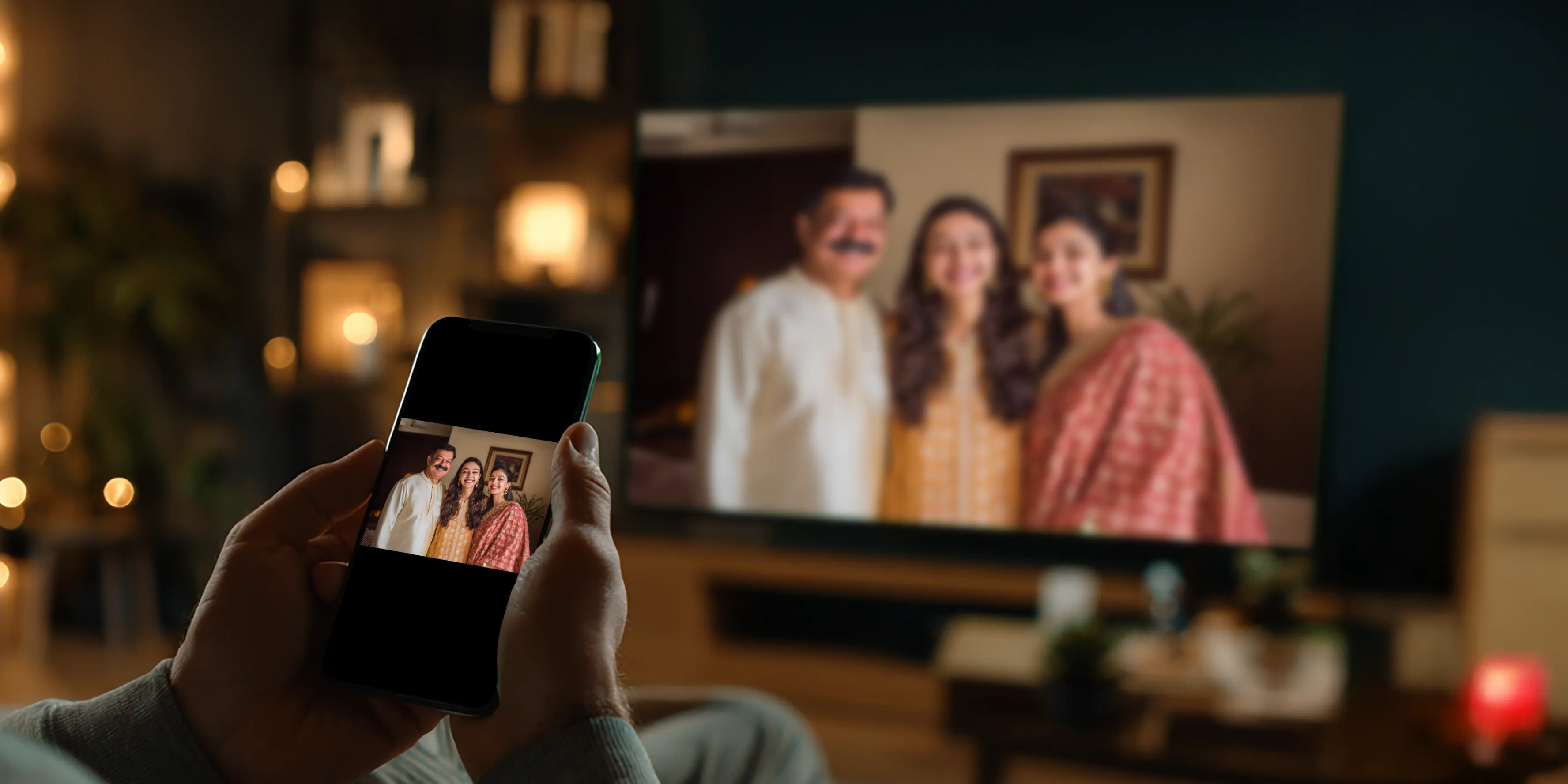
Enjoy photos & videos on your TV
Memories got a new meaning!
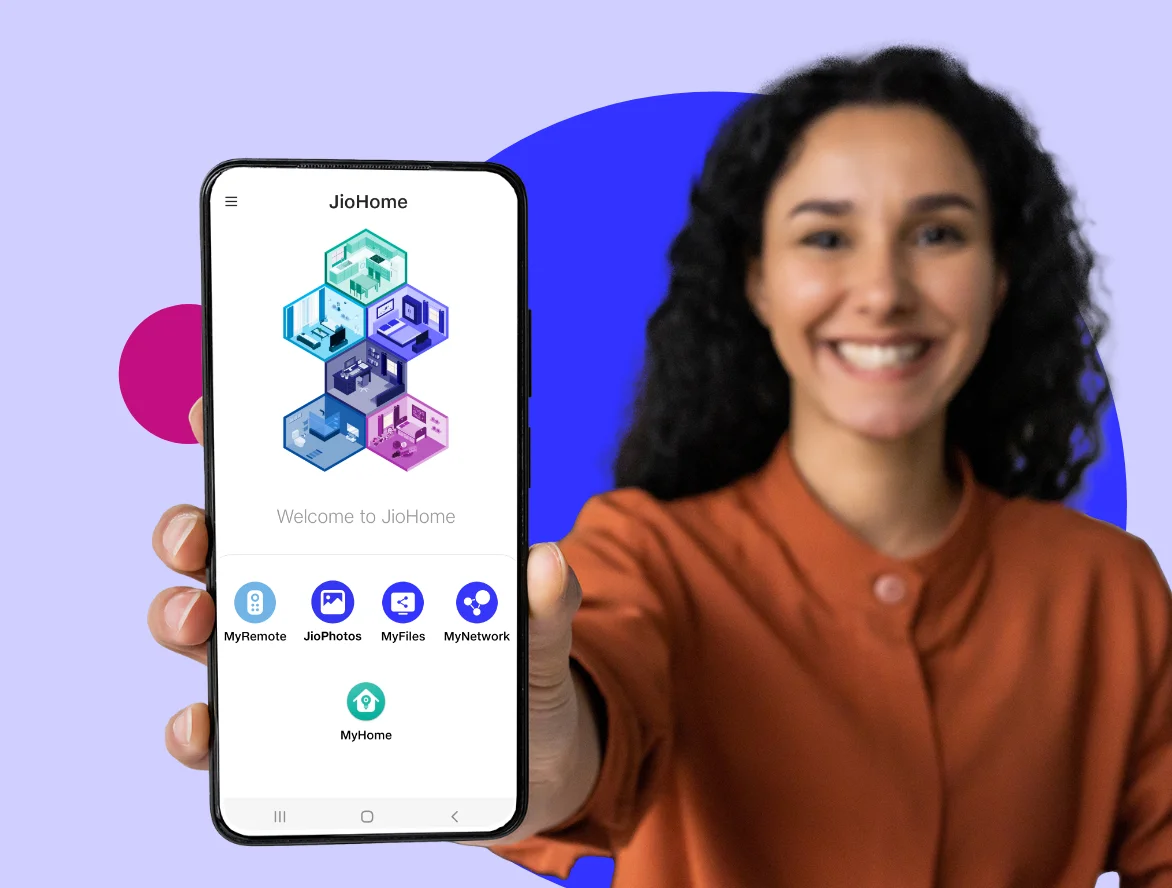
Use JioPhotos on the JioHome app
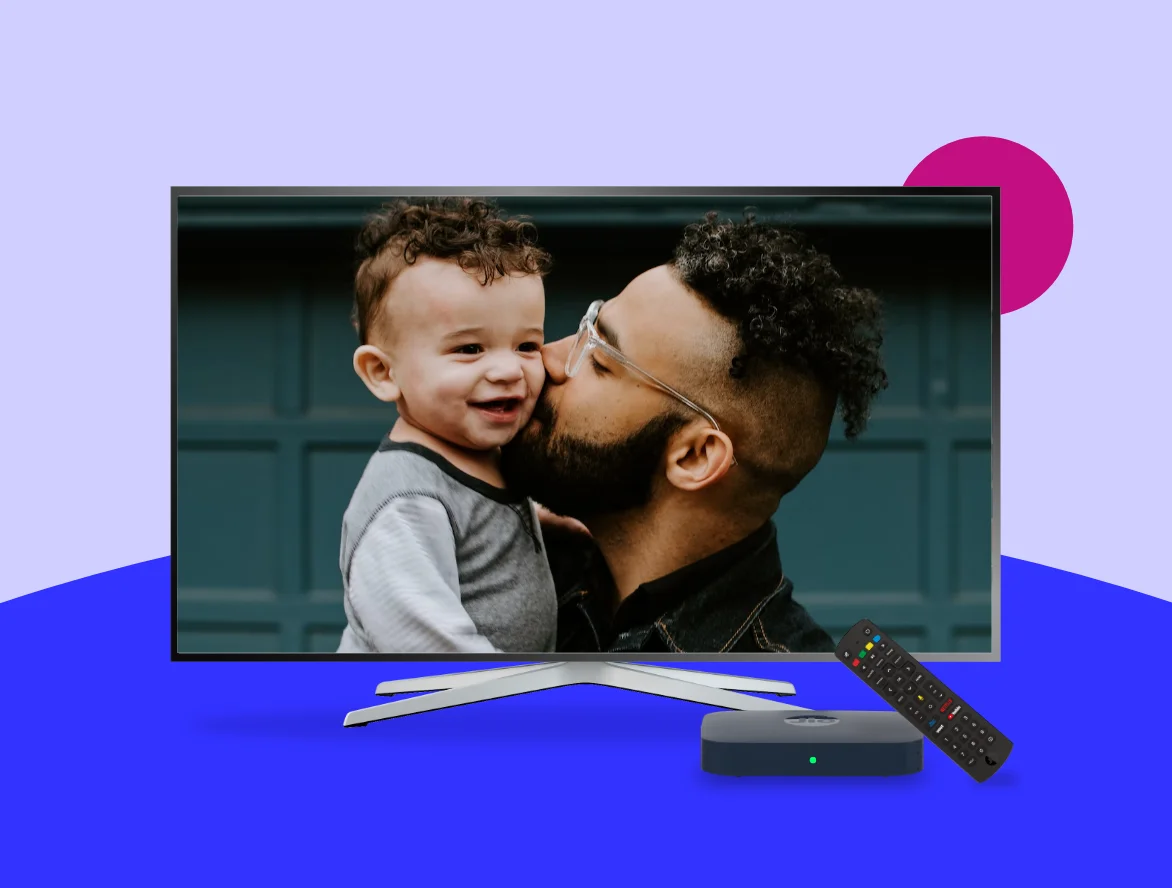
Set your photos as a TV screensaver
Tag faces in photos to organise them
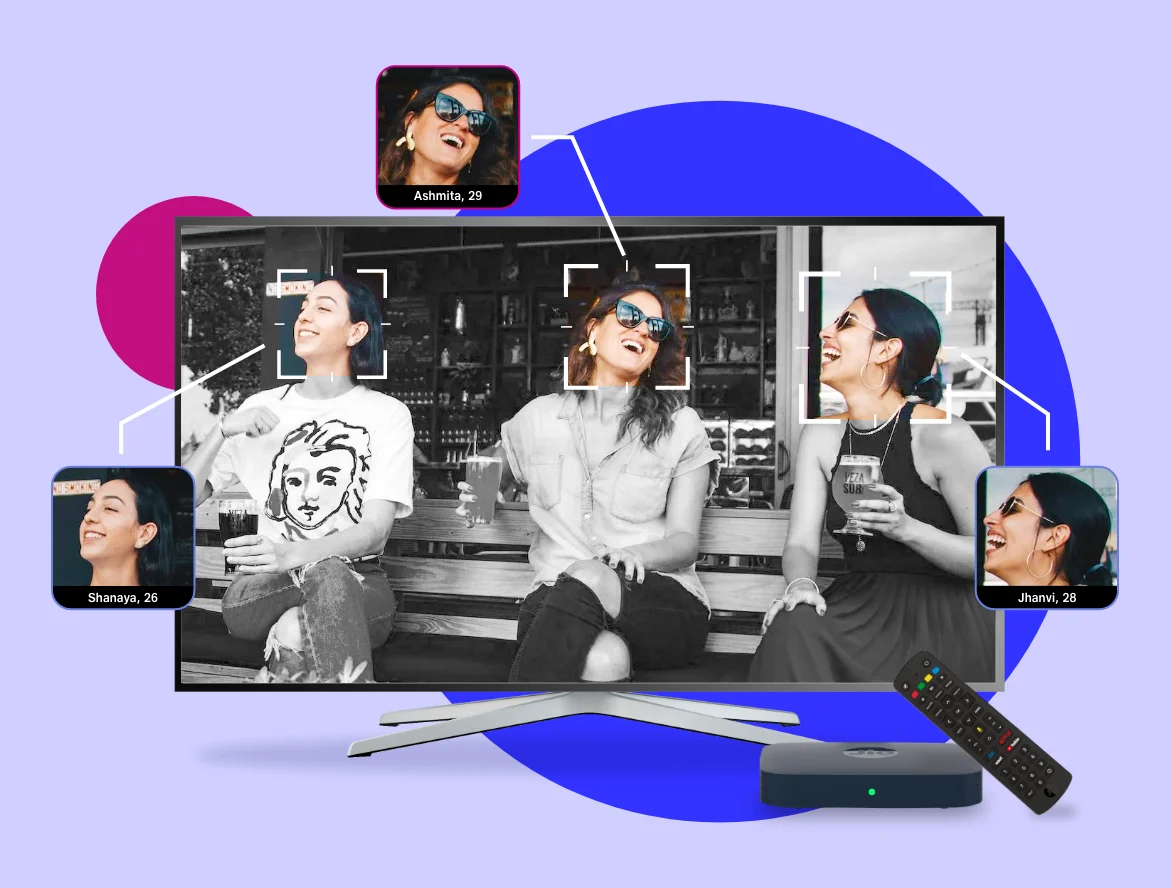
Photo-viewing made extraordinary
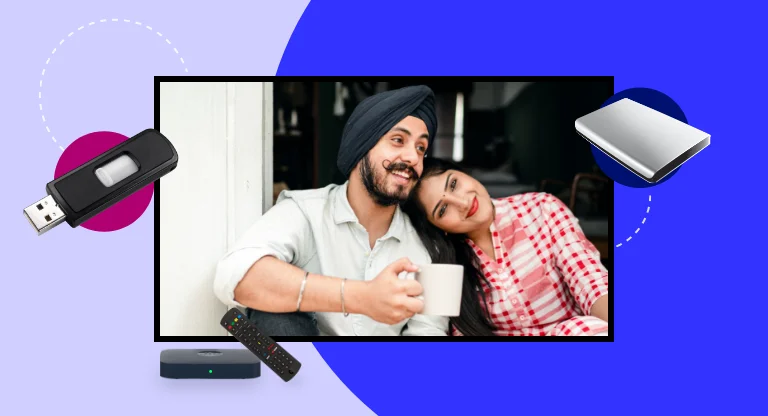
Connect any personal device
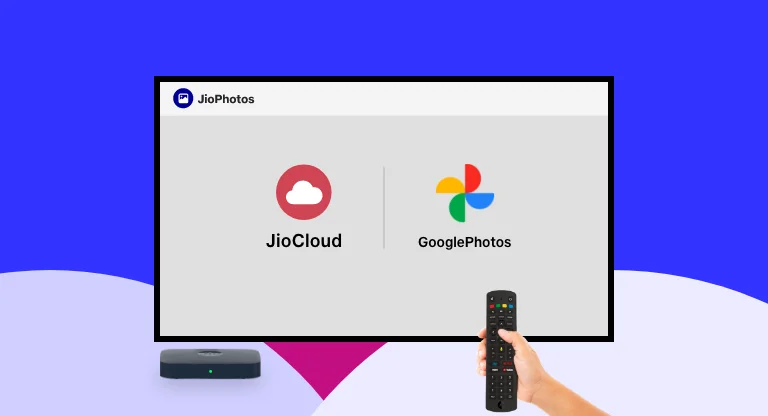
Access media from cloud
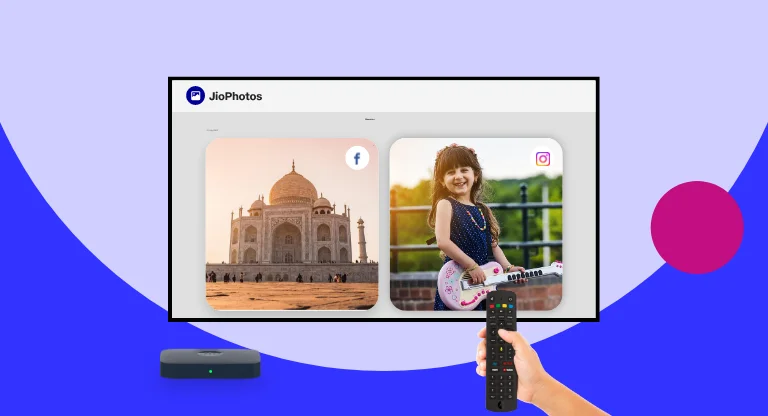
Enjoy social media content
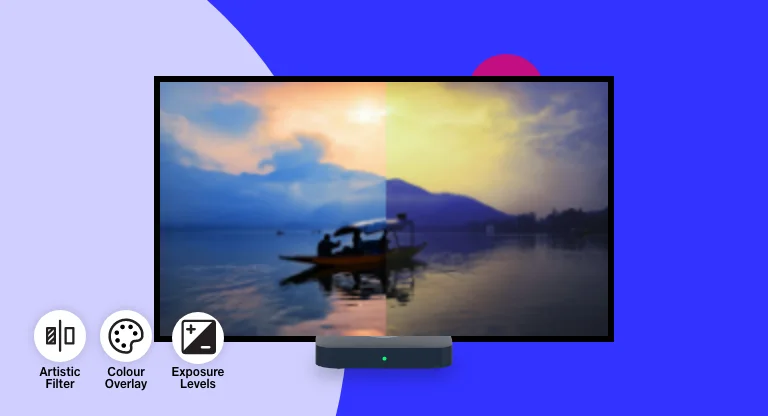
Edit your photos on TV
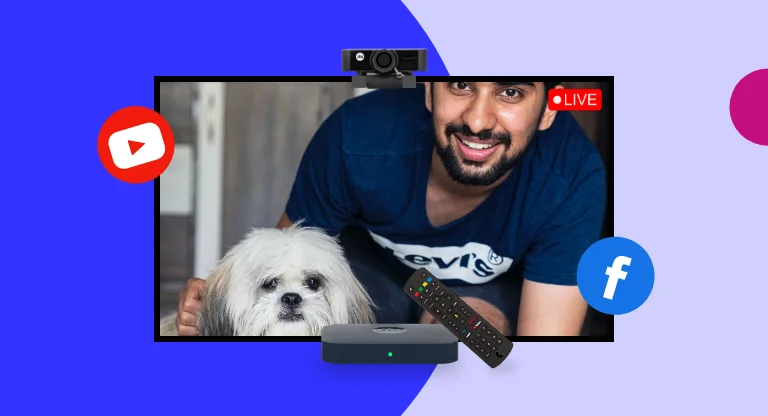
Stream your moments live
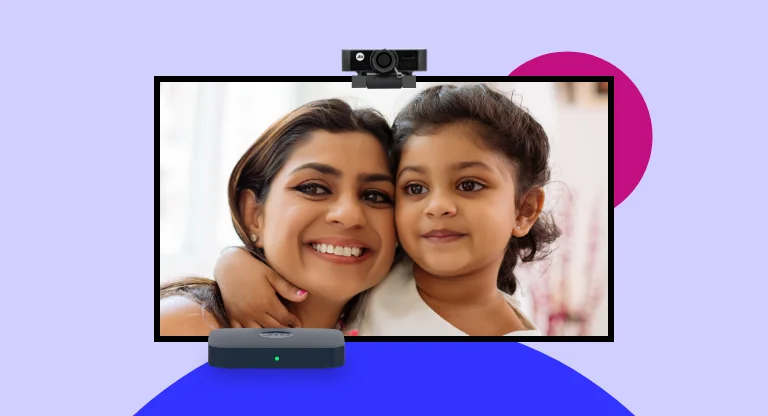
Record from your TV
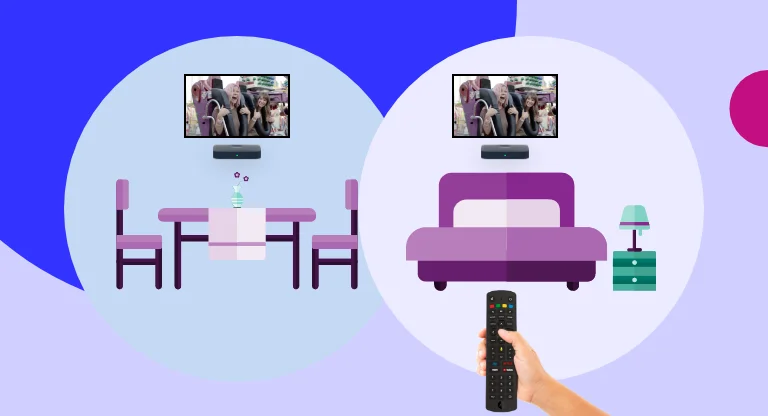
Continue watching with media hopping
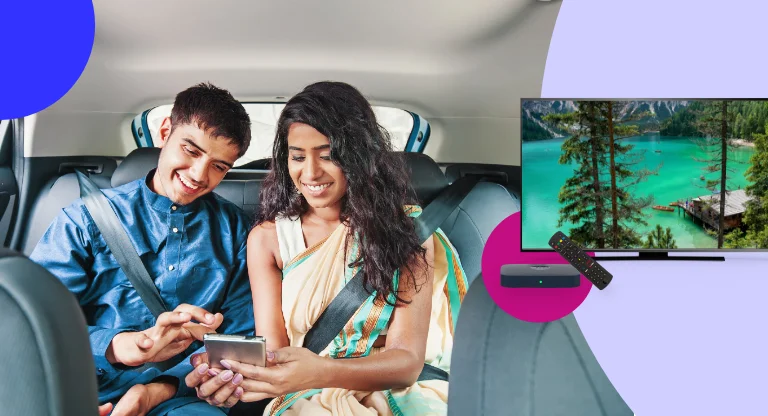
Access media files on the go
How to get started with JioPhotos?
Book JioHome to get home internet
Order and connect a Jio Set Top Box
Activate with a plan and you’re all set
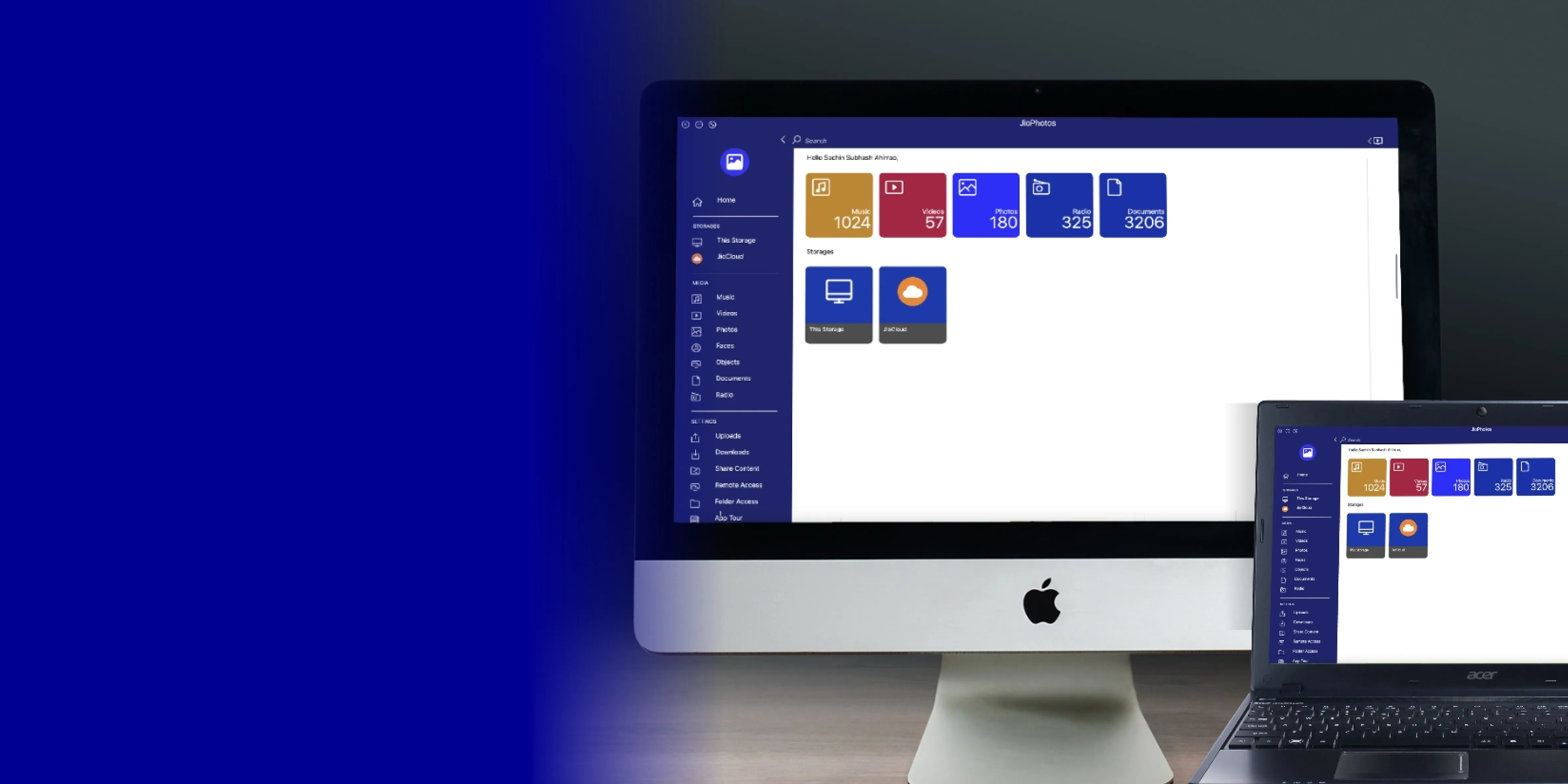
Seamless media streaming
10K+ radio channels
Effortless content sharing
Wireless uploads and downloads
Broadcast big moments on Facebook LIVE through TV
Meet JioPhotos’ happy users




FAQ
Photos: Here the content from the Jio Set Top Box/Jio Home Gateway will be listed as per date and location.:
Albums: Here the content will be segregated into multiple folders based on content type, storage platform, social media account, etc.
Memories: Here the content published from everywhere will be listed date-wise in an animated form.
Storages: Here you can browse through the directory structure and the selected content can be played using the Jio Set-top Box remote.
Please note, the JioPhotos app will not show audio or music files.To view your Google Photos, log in to Google Photos from the ‘Settings’ tab. After logging in successfully, all the content (photos/videos) present in Google Photos will get listed in the Photos/Memories/Albums tabs. Follow the same method to log into JioCloud, Facebook, and Instagram accounts.
- To view your photos, please log in to Google Photos from the ‘Settings’ tab.
- Once logged in, all the content (photos/videos) present on Google Photos will get listed under the Photos/Memories/Albums tabs.
- Follow the same method to log into JioCloud, Facebook, and Instagram accounts.
- Connect the JioTV Camera to the USB port of your Jio Set-top Box.
- Log in to your Facebook account on the JioPhotos app.
- Navigate to the ‘Live’ tab and select ‘Facebook Live’.
- Set preferred privacy settings for the ‘Live Video’ from the Facebook app on your smartphone.

