
Drive with clarity.
Drive with confidence.
Drive with confidence.
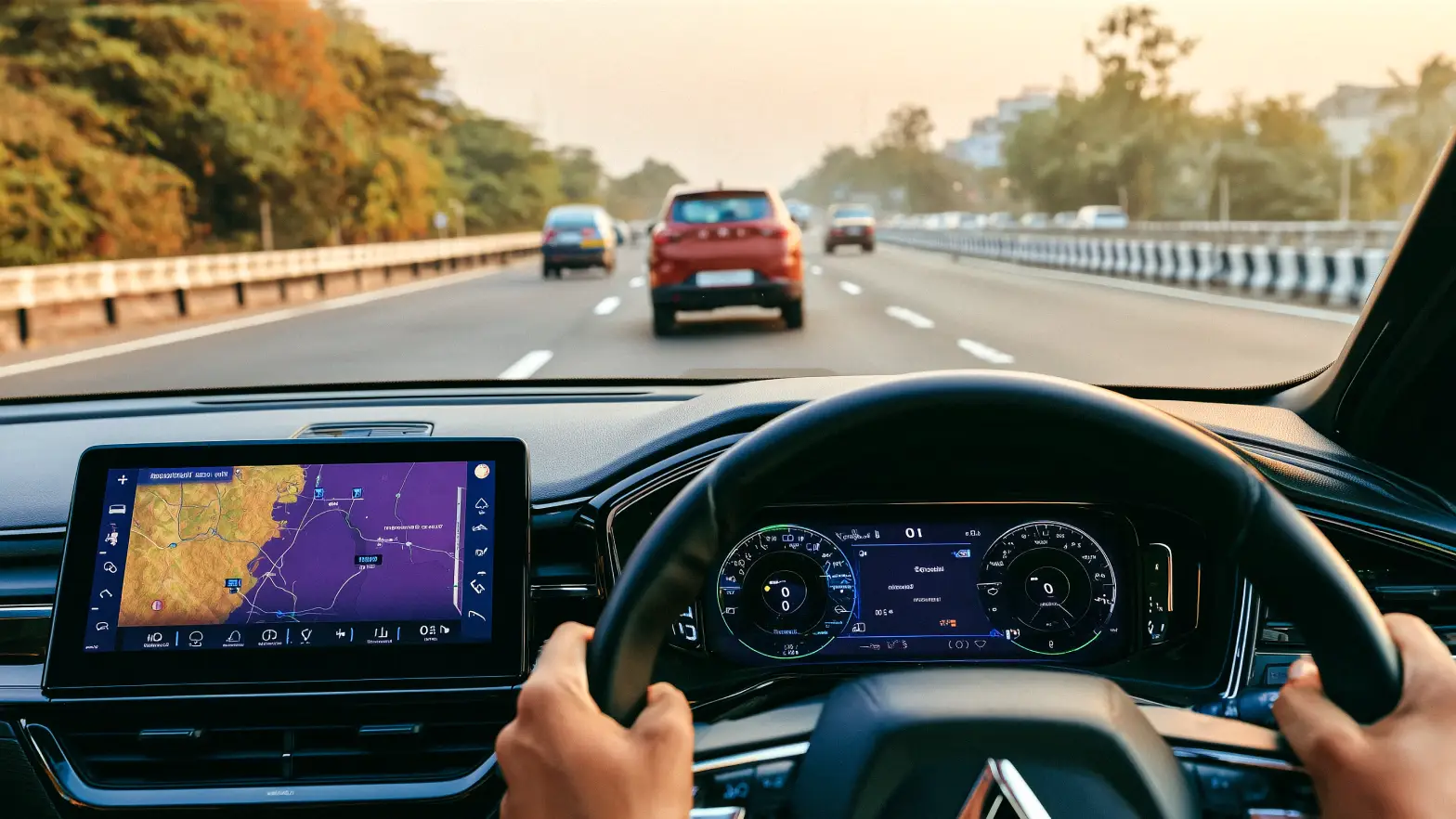

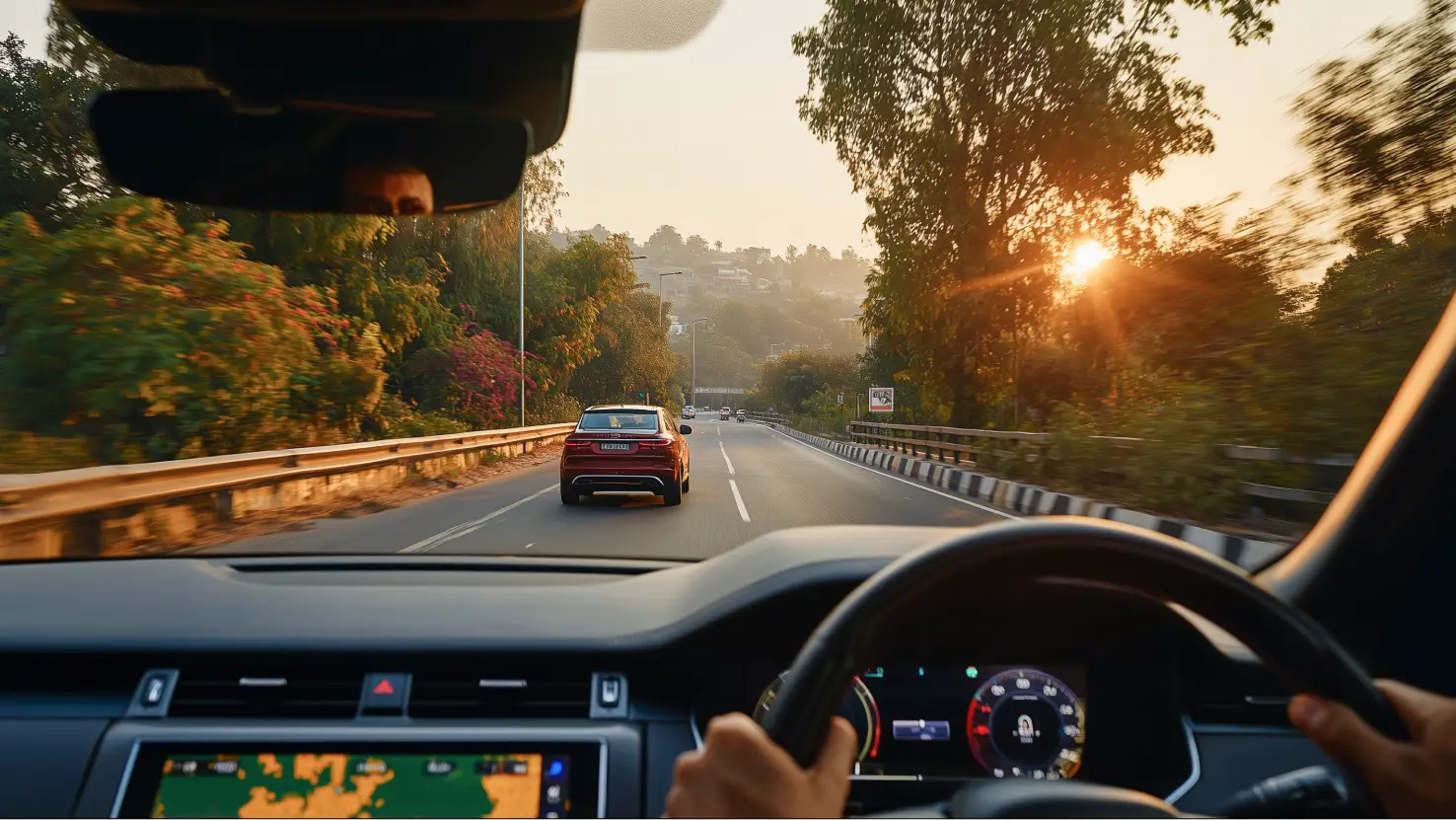
A dashcam that does more than just record
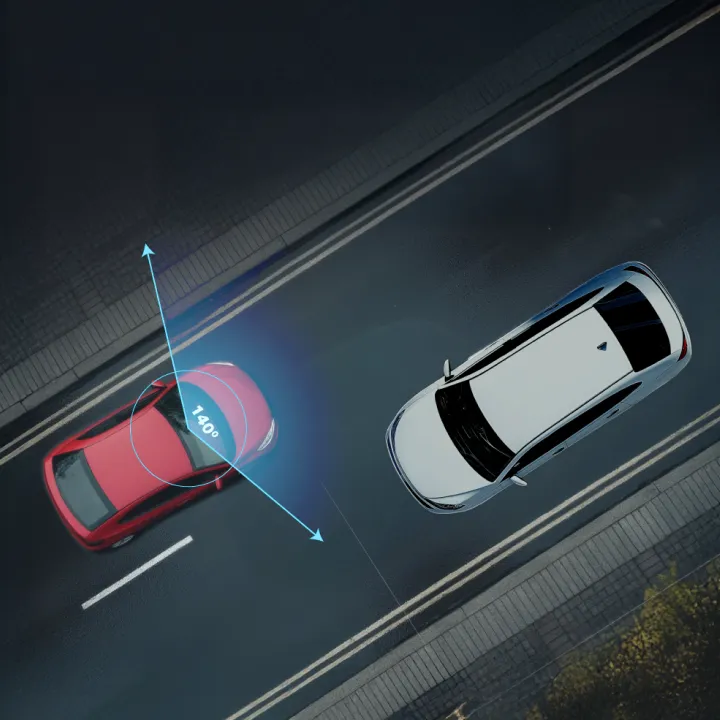
Super-wide 140° view of the road
Night-ready for low-light driving

Major highlights
G-Sensor & Emergency Recording

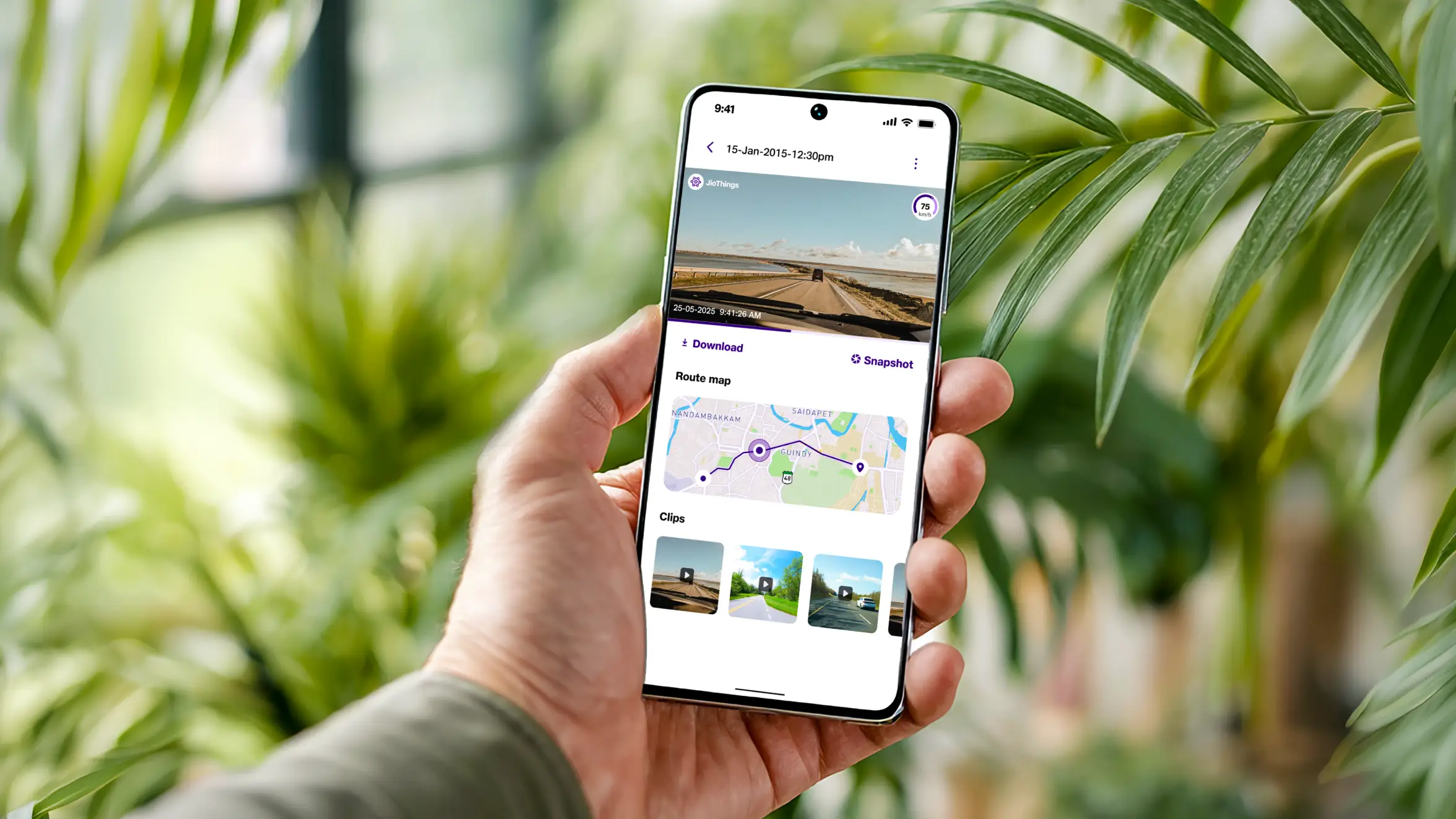
In-Built GPS Logging
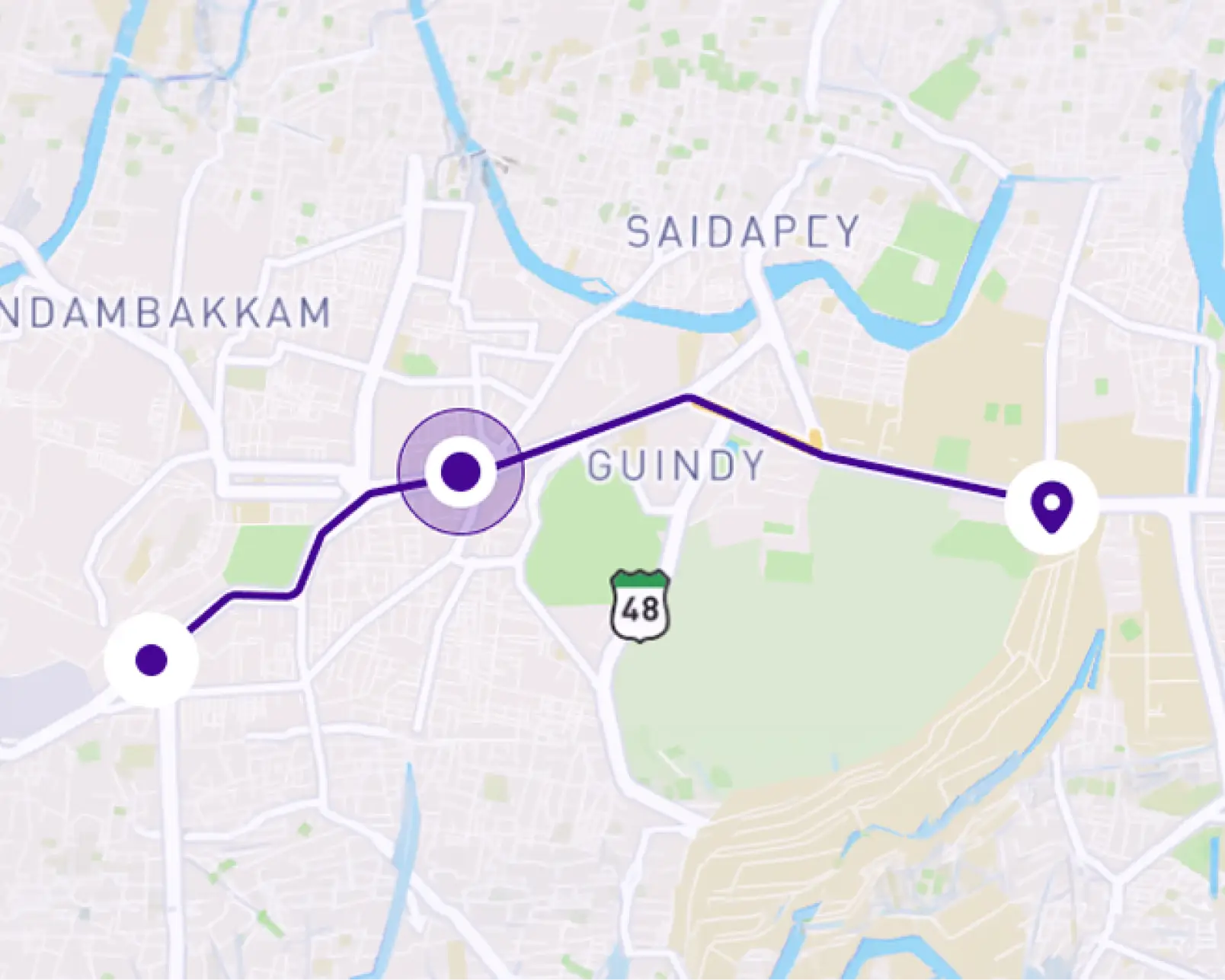
Pedestrian Detection
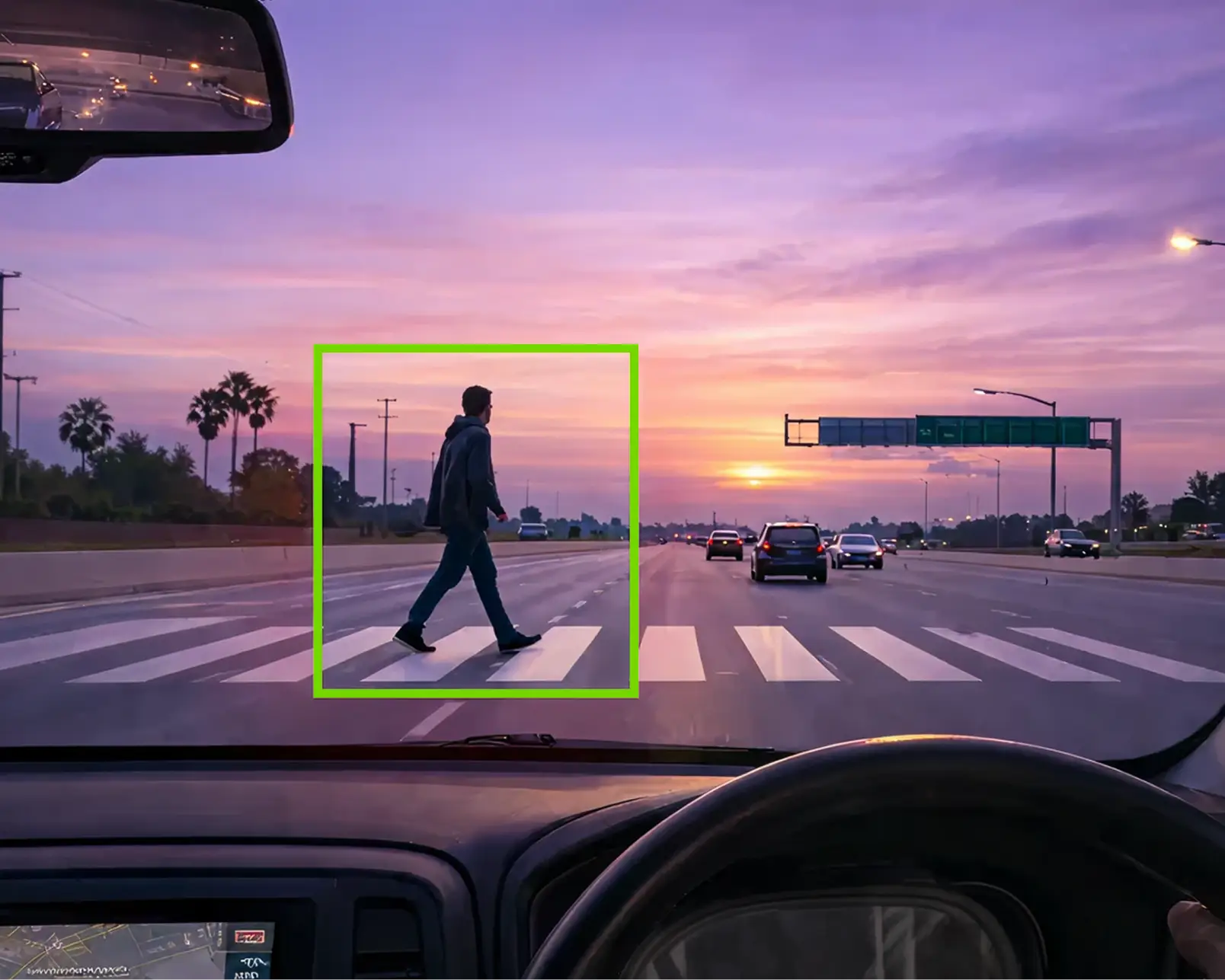
One device.
Many real-world benefits.
Many real-world benefits.

Drive with proof
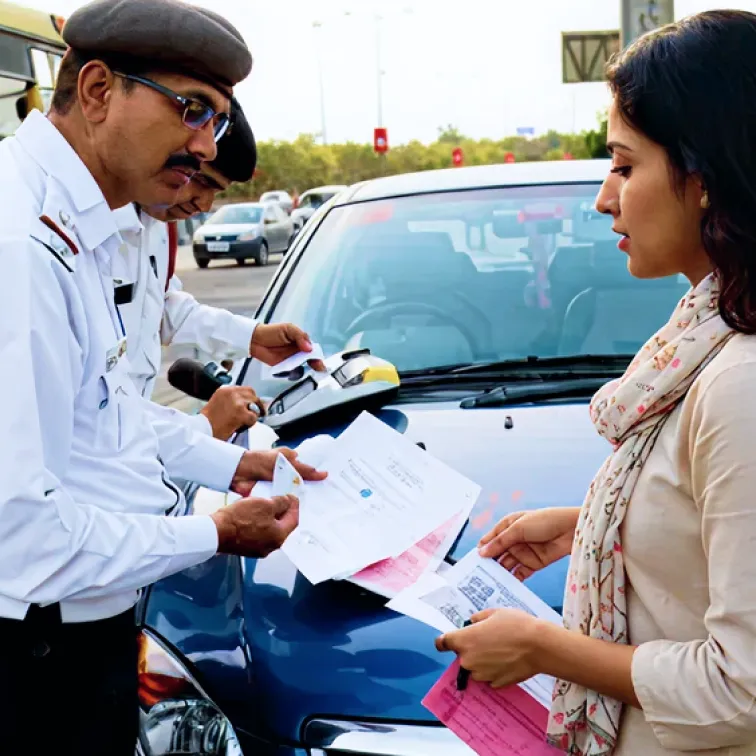
Resolve claims faster
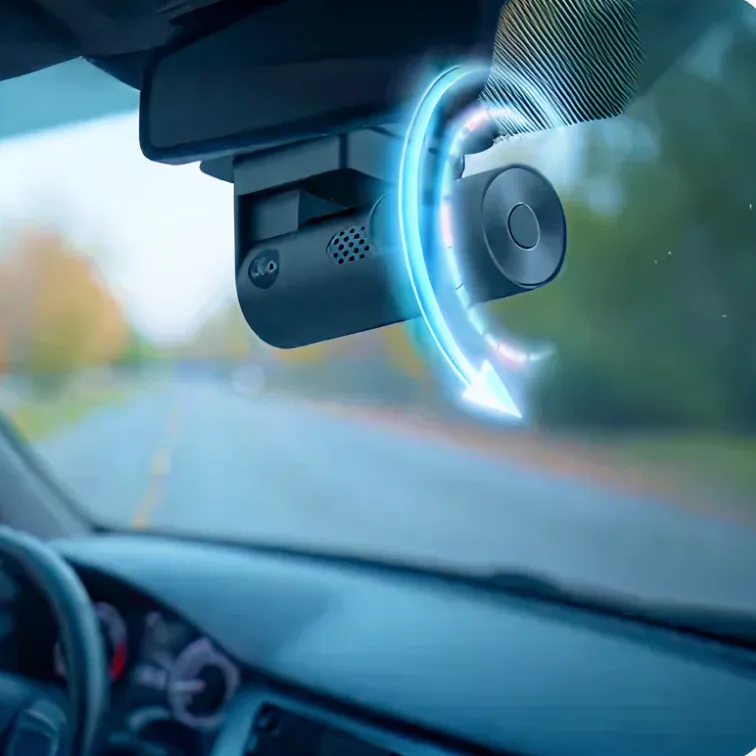
Get pedestrian alerts
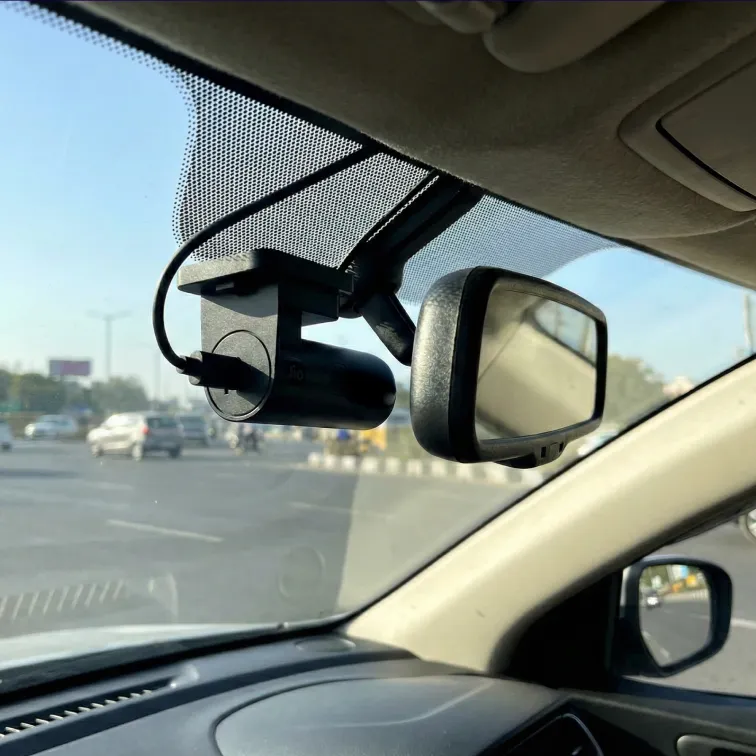
Set up instantly
Setting up on the
JioThings app is even easier
JioThings app is even easier
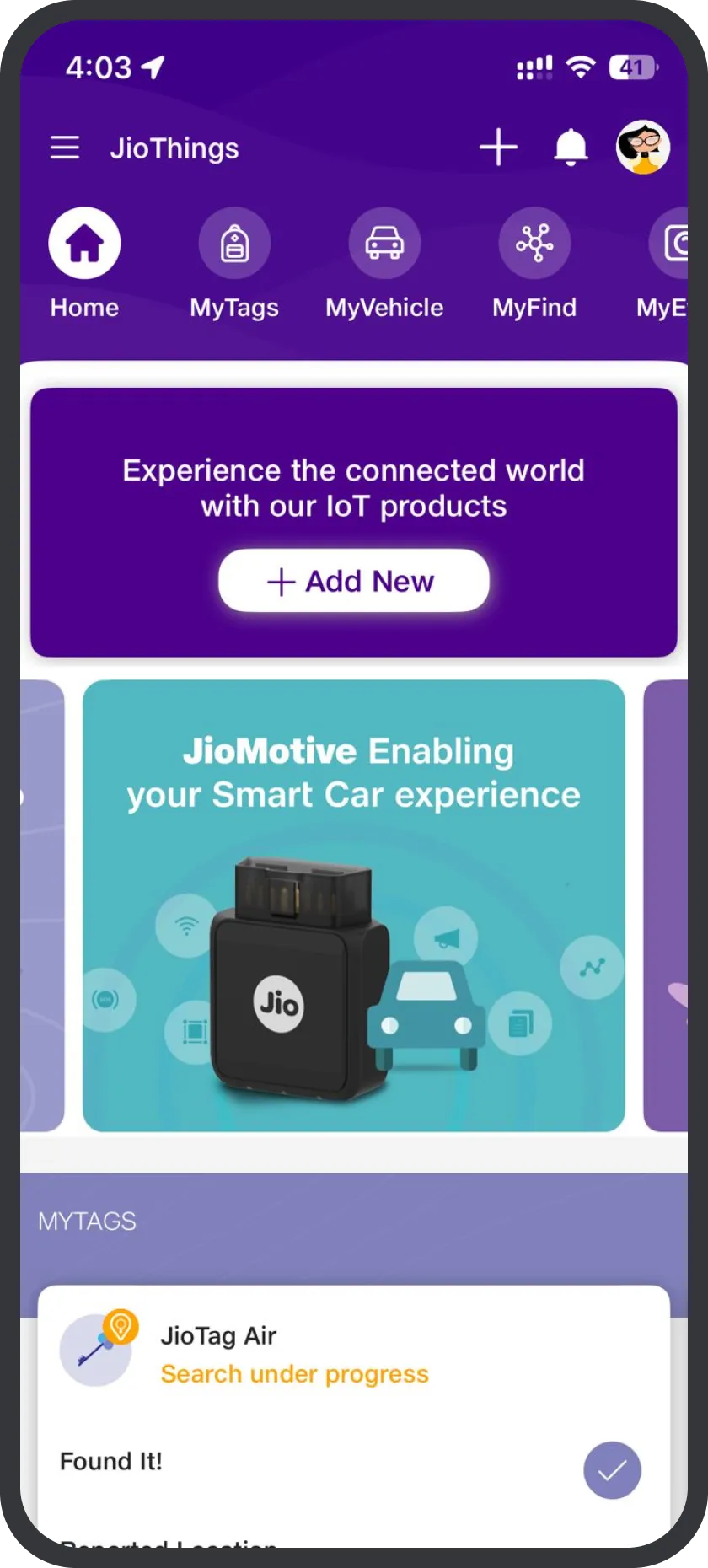
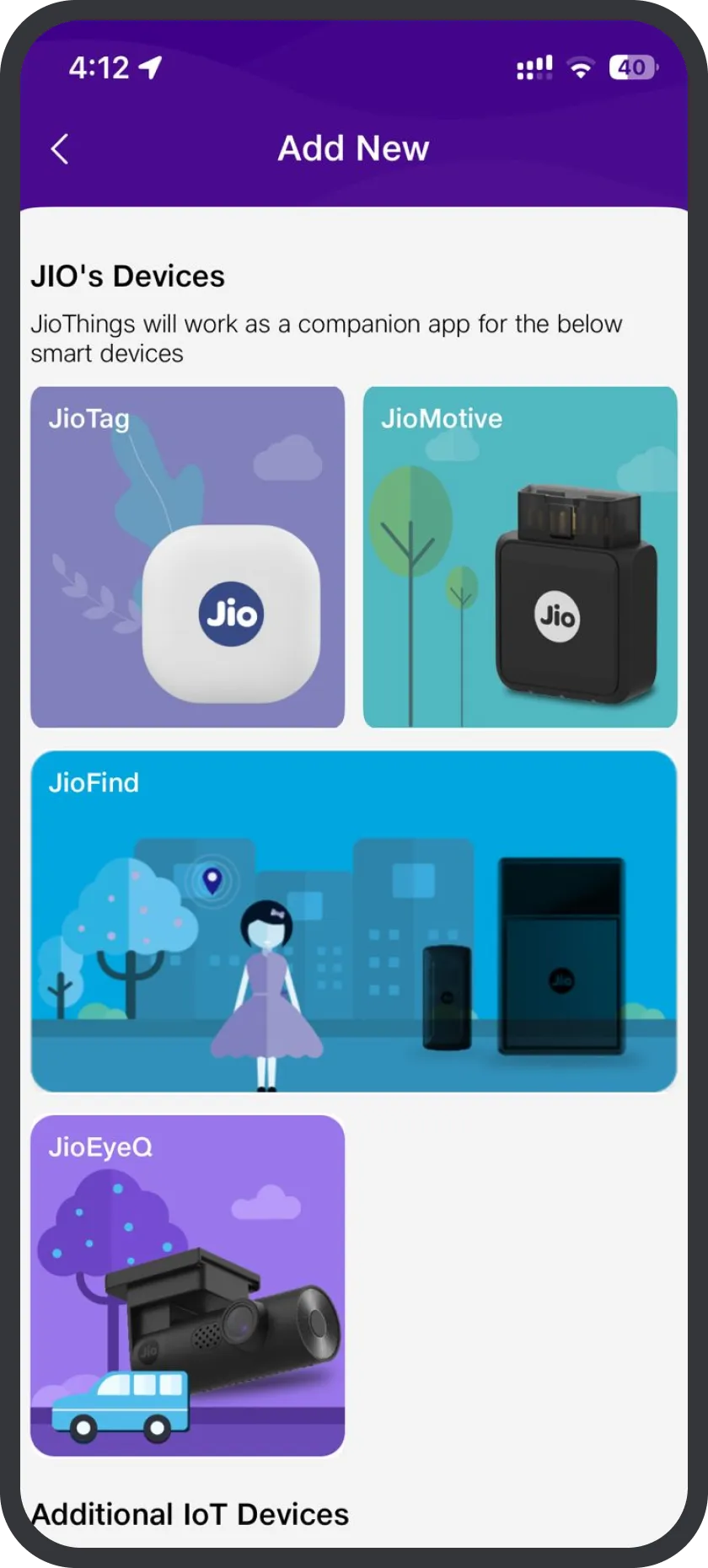
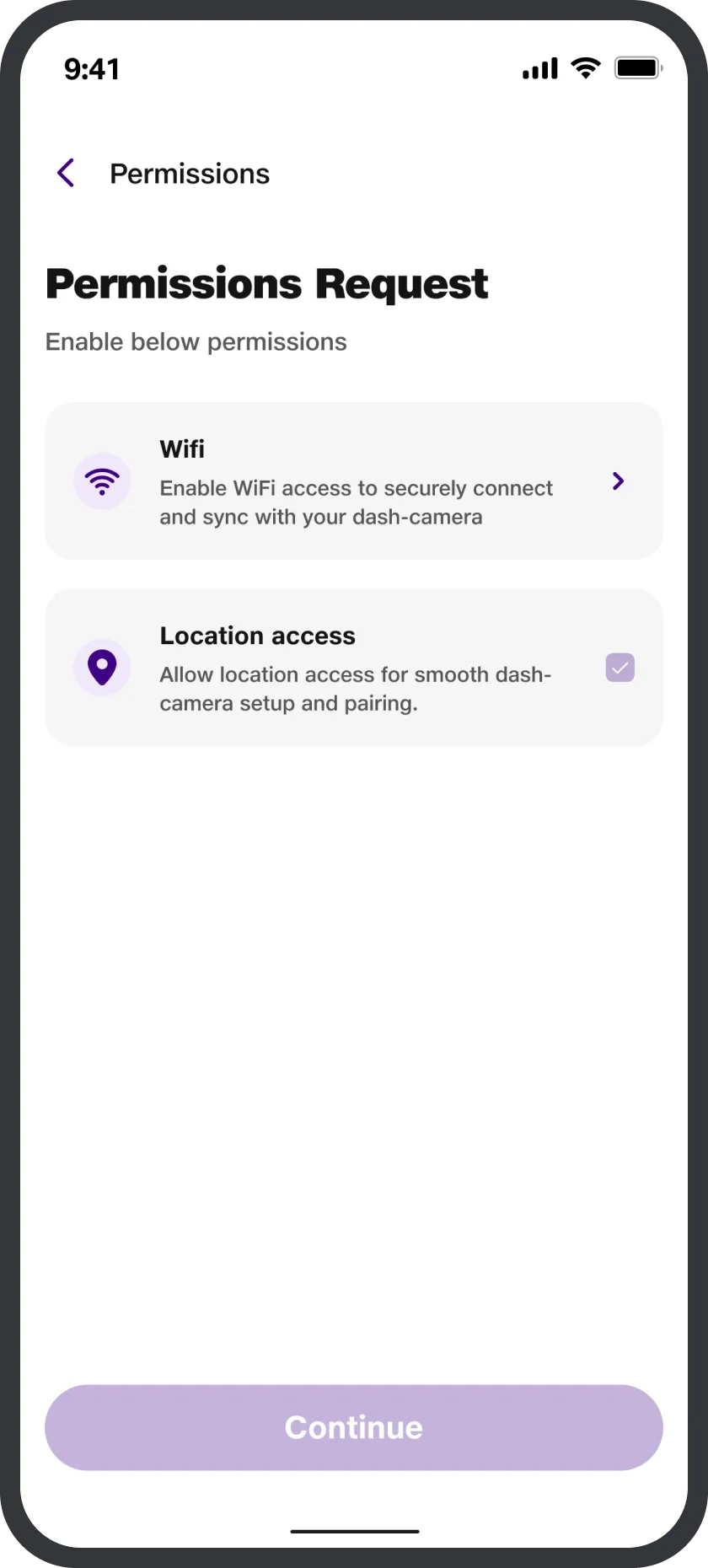
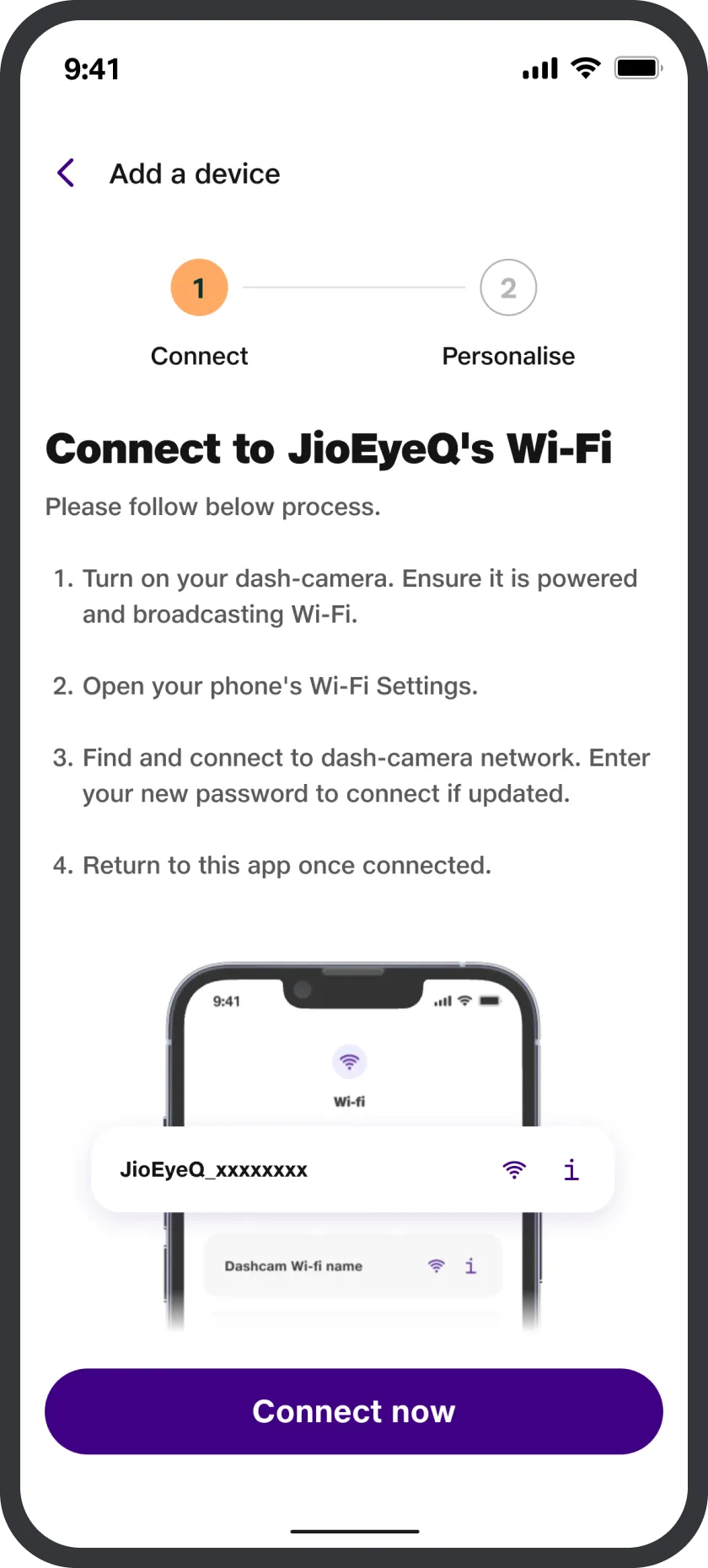
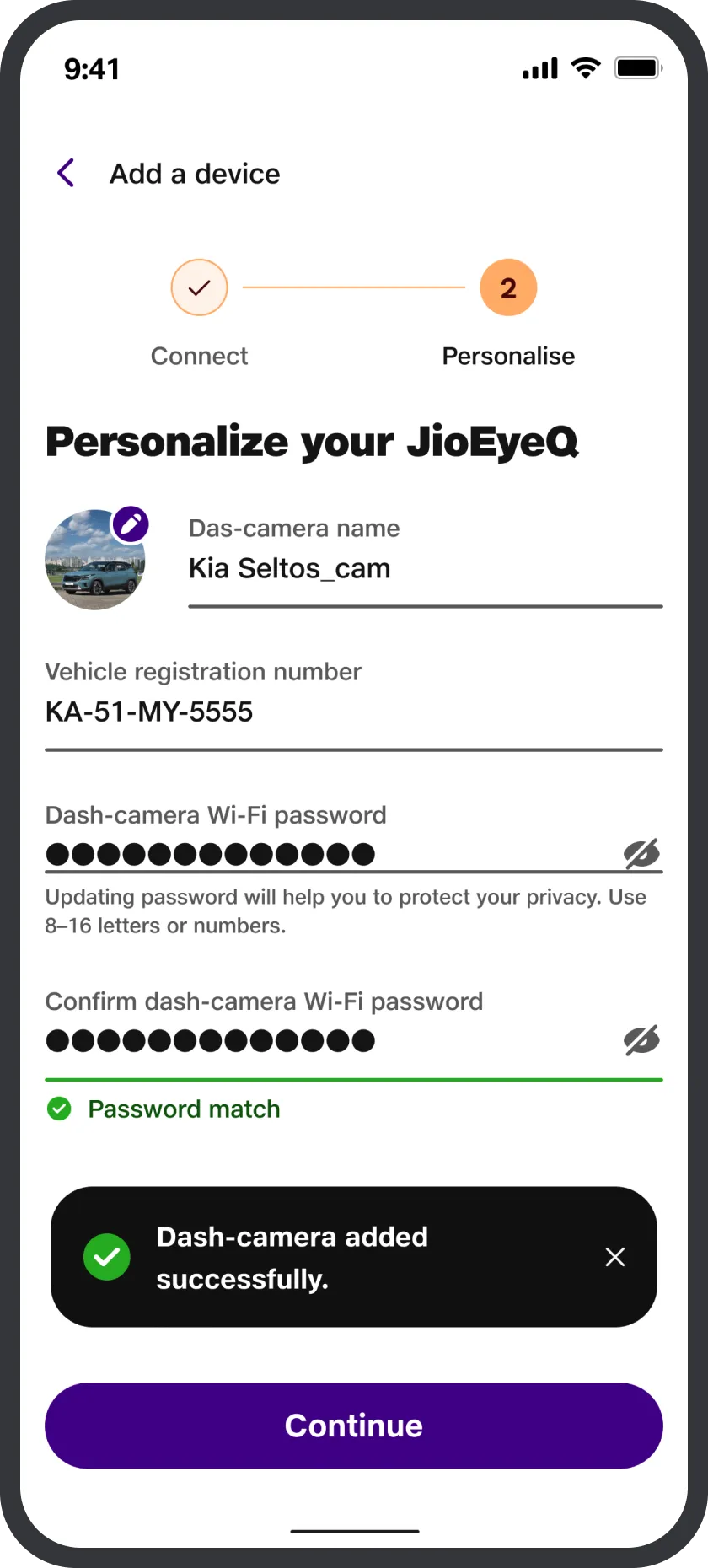
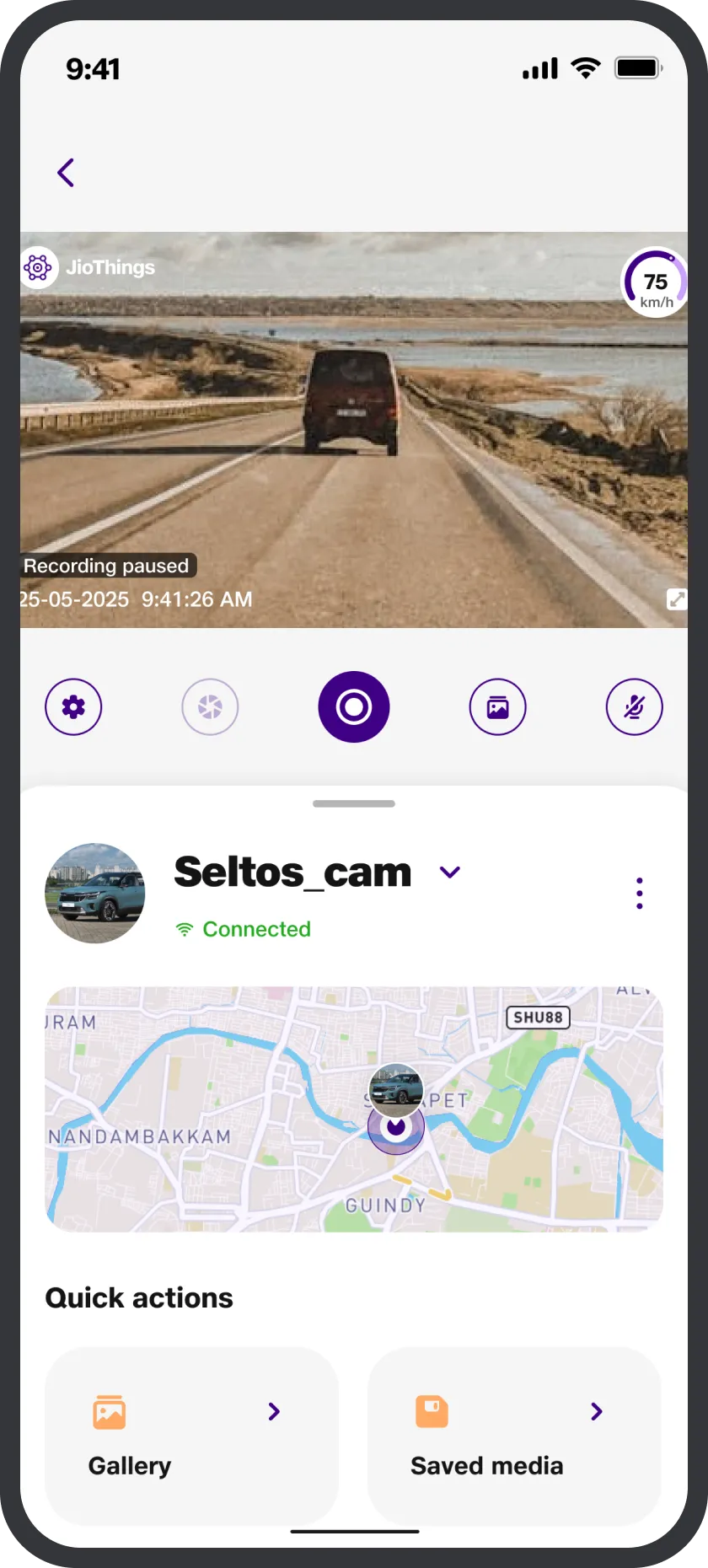
Step-by-step JioEyeQ installation guide
Get your JioEyeQ dashcam now
Other JioThings products
Free and fast delivery
We’re here for you
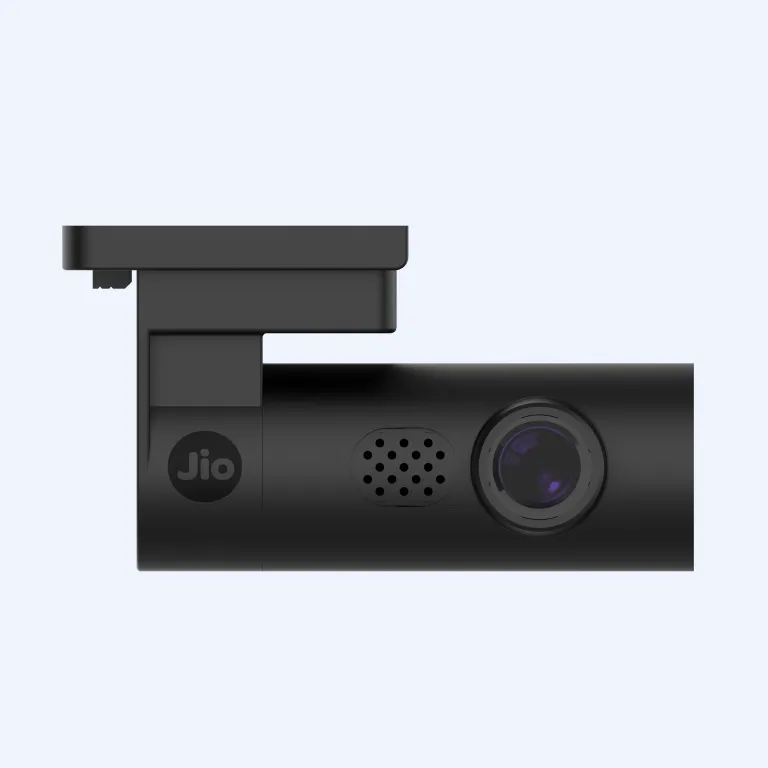
JioEyeQ Dashcam
Keep exploring
FAQ about JioEyeQ
- JioEyeQ gives you clear recording, smart alerts, and reliable drive tracking — all in one compact dashcam.
Here’s what you get:
- Full HD 1080p recording so every detail is clearly captured
- 140° wide-angle lens to cover more of the road ahead
- In-built GPS logging to record your route, speed, and location
- AI People Detection for pedestrian and two-wheeler alerts
- Collision Detection (G-sensor) that automatically locks impact footage
- Loop recording, so recording never stops
- 32 GB microSD card included, ready to use
In short, it records what matters, alerts you when needed, and keeps proof safe if something unexpected happens. So if these features are everything you were looking to add to your car, get your JioEyeQ now.
You control everything through the JioThings app.
It’s available on the Google Play Store and Apple App Store. Once you complete setup, your dashcam appears under the MyEyeQ section on the JioThings app.
With the JioThings app, you can:
- Watch live footage
- Download videos
- Adjust settings
- Enable or disable AI alerts
- Check the route history on the map
Think of JioThings as your remote control for the JioEyeQ dashcam.
This is completely normal. When you connect to the dashcam’s Wi-Fi, your phone may lose internet because that Wi-Fi is only for camera connection. It doesn’t provide internet access.
Here’s what you can do while setting up your JioEyeQ:
- Keep Mobile Data turned on, or
- Enable:
- Wi-Fi Assist (on iPhone), or
- Smart Network Switch/Dual Channel Network Acceleration (on Android)
This allows your phone to use mobile data while staying connected to the JioEyeQ dashcam Wi-Fi.
Yes, you can change your JioEyeQ Wi-Fi password, and it only takes a minute.
Just follow these quick and easy steps:
- Connect your phone to the dashcam’s Wi-Fi through the app
- Go to Camera & Device Settings
- Tap Wi-Fi
- Select Edit
- Enter the new password. Please note that only numeric passwords are supported.
- Tap Update
With that, the dashcam will restart automatically. After that, simply reconnect your JioEyeQ using the new password
Playback controls work inside the ‘Downloaded Media Gallery’ in the app. If you’re streaming directly from the SD card, it’s not supported.
So download the clip first and then scrub through it just the way you want.

